Features
This page describes what Carbure does and by which rules: where transactions come from, how they are classified, how budgets, the money flow of the month and trends are computed, who receives which notification and what each person can do. For screen-by-screen usage, see Web portal and Mobile apps.
The household
Carbure manages one household: one installation, shared bank accounts and people who view the same data.
- Shared data: bank accounts, transactions, categories, rules, budgets and insights are shared by all users. A transaction technically belongs to the first user who follows the account, but everyone sees it and checks it off.
- Personal data: each user has their own login, password, language (French, English, Spanish, Italian, German or Portuguese), display theme, alert thresholds, the channels of their notifications (push, email), their mobile devices (iOS, Android), their web browsers, their trusted browsers and their access tokens for AI agents.
- Two profiles:
| User | Administrator | |
|---|---|---|
| View transactions, budgets, flow, insights, trends | ✅ | ✅ |
| Check off and categorize transactions | ✅ | ✅ |
| Change budget amounts | ✅ | ✅ |
| Manage their profile, devices, access tokens | ✅ | ✅ |
| Create and edit categorization rules | ➖ | ✅ |
| Create and edit categories | ➖ | ✅ |
| Follow bank accounts, configure banks, synchronize from the portal, update woob modules | ➖ | ✅ |
| Create and edit insights (SQL queries) | ➖ | ✅ |
| Enable the MCP server for AI agents | ➖ | ✅ |
| Manage users and server settings (including emails), view logs, update the database | ➖ | ✅ |
The last administrator cannot lose their role.
Bank accounts and synchronization
Connecting to banks
Carbure connects directly to each bank with woob, a piece of free software that queries the bank's website just as you would: no third-party banking aggregator, no cloud. woob modules mostly cover French banks.
- Configure a bank: an administrator picks the bank among those woob supports; the portal shows the fields its module asks for (customer number, secret code, account type…). These credentials are handed to woob, which keeps them in its own file, readable only by itself; Carbure does not store them in the database and does not write them to the logs.
- Follow accounts: first connect the bank, then, for this connection,
add accounts among those woob lists (
woob bank list -b <bank>, with their label and balance): tick the ones to follow and they are all added at once. Only an account found by woob can be followed. - Several connections to the same bank (joint account, business account…), each with its own credentials; a connection and a followed account can be given a readable name ("Joint account"). Deleting a connection makes woob forget its credentials and stops following its accounts; their transactions are kept.
- Bank modules: when a bank's website changes, woob publishes a fix for its module; an administrator updates the modules from the Accounts tab (also offered under the log of a failed synchronization), after approving the key of woob's repository the first time (see Security).
- Followed accounts are shared by the household: each one shows who added it, and the date and result of its last synchronization (Synchronized, Failed with the message, or Never synchronized). Unfollowing an account keeps its already imported transactions.
How a synchronization runs
For each followed account:
- Upcoming transactions, then history: woob returns the latest transactions
(100 by default, setting
woob_transactions). A failure on upcoming transactions does not prevent the history: the account stays synchronized, with the failure noted in its result and in the log. - Label cleaning: converted to uppercase, removal of the bank's technical prefixes and
suffixes ("FACTURE CARTE DU 040126" becomes "CB", card number removed,
mandate references of direct debits…), according to the
regex_labelexpressions of the configuration. - Deduplication: each transaction gets a fingerprint (actual date, cleaned label, amount); a transaction already known is never imported twice, even when synchronized several times or by two users. Identical transactions received together (two coffees on the same day, at the same price) are indeed both kept: they are told apart by their rank.
- Month of attribution: a received transfer dated on the 25th or later is attributed
to the 1st of the following month (a salary paid on the 28th counts for the month it
funds); the actual date remains visible in the transaction details. The day is set in
Administration → Settings (
next_month_day, 1 to 31, 0 to never move a transfer, see Configuration). - Notifications: see Notifications.
Then, once all accounts are processed, the categorization rules classify the transactions of the last month still without a category.
- When: every day with Docker (
SYNC_INTERVAL), through a scheduled task (cron with thesync_token: the Administration → Sync tab gives the ready-madecurlcommand and crontab line), or on demand from the Accounts tab, for all accounts or a single one. - Without synchronization (bank not covered by woob, importing past history): the statements downloaded from the bank are imported from the Transactions tab (see below).
- Live tracking: steps per account (upcoming, history, notifications), number
of transactions received and new, detailed log (with woob's debug logs if
woob_debugis enabled); on a woob error, a link to the issues of the module concerned. - One at a time: a synchronization started while another is running is refused ("already in progress").
Transactions
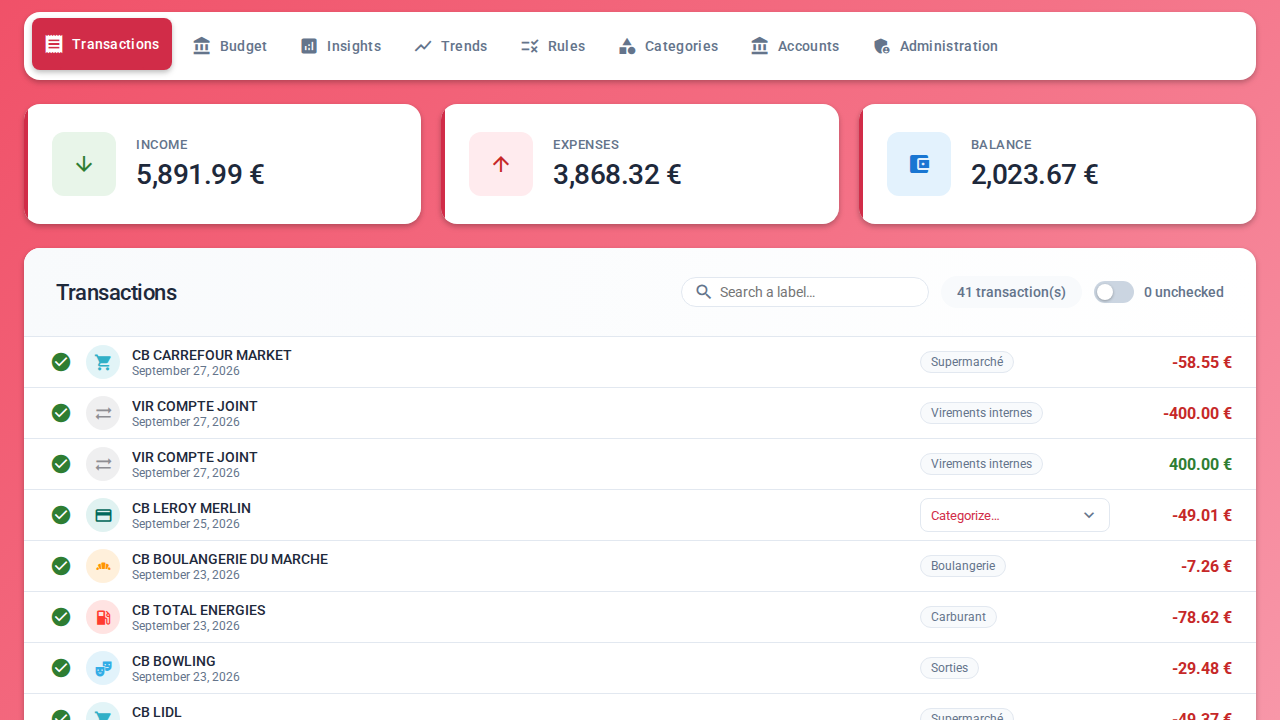
- List of the selected month, most recent first: icon and color of the category (or of the transaction type if it is not categorized), label, date, category and amount.
- Income, expenses and balance of the month at the top of the page.
- Checking off: each transaction is "checked" or not, in one click. Unchecked transactions are in bold; a toggle shows only those, with their count. Categorizing a transaction also marks it as checked. The number of transactions to review is shown in the notifications and in the iPhone app badge.
- Month picker in the header, limited to months that have transactions.
- Search across all months, from two characters, with the total of the transactions found.
- Details: amount, full label, date and actual date, type (card, transfer, direct debit…), card, originating bank, import date; the category and the checked status can be changed there. Similar transactions runs a search on the merchant's name ("PRLV SEPA EDF MDT/123" searches for "EDF").
- Delete a transaction (from its details, after confirmation): it disappears for the whole household and is never imported again, neither by synchronization nor by importing a statement.
- Categorize by hand a transaction without a category: a picker with search, icons and colors. For an administrator, Carbure then offers to create the matching rule, so that the next ones are classified automatically.
- Recurring transactions detected automatically and bank statement import: see below.
Bank statement import
For a bank that woob does not cover, or to bring in the history from before Carbure:
- Download the statement from the bank's website, in one of the formats offered: OFX/QFX, QIF, CSV or CAMT.053 (XML ISO 20022).
- In the Transactions tab, click Import and drop the file (1 MB at most).
- The preview classifies each row: new (ticked), already known (same fingerprint as an existing transaction, ignored) or probable duplicate (same amount within 3 days, often the same transaction already synchronized with a different label: unticked by default, it is up to you to decide).
- Confirm: the ticked transactions are saved (the details show "imported statement" as their origin), then the rules categorize them; the list opens on the last imported month.
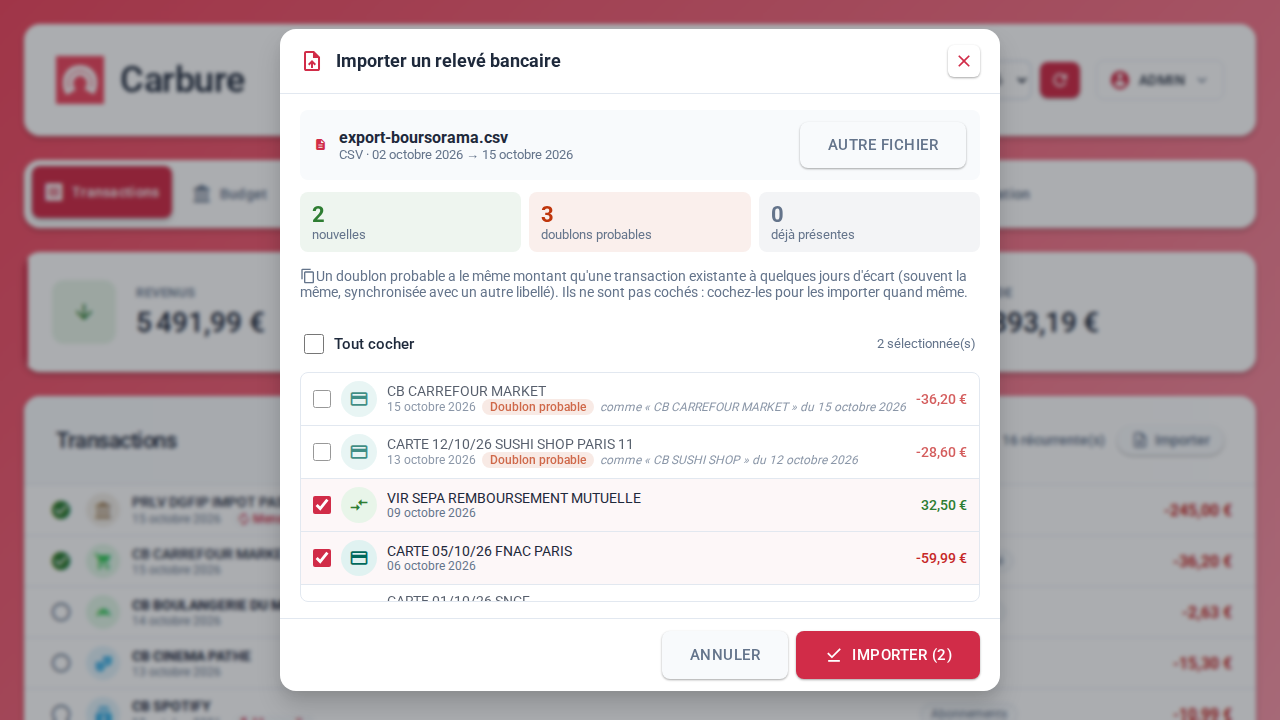
A CSV exported by one of the banks below is read with the profile of its bank
(its columns, its encoding, its rows before the header): the preview says so, for example
"Recognized format: Boursorama / BoursoBank". For any other bank, the preview shows
"Generic format (columns guessed)": the columns are recognized from their header
(date, label, amount, or debit and credit), including French formats (;,
1 234,56, Windows-1252 encoding) and the account rows before the header; in that case, check
the preview before confirming. Non-posted rows from neobanks (pending,
cancelled, declined) and zero amounts (card authorizations) are ignored; fees
given separately (Revolut) are deducted. The label is cleaned as during synchronization. The
file's content is never written to the logs.
Recognized CSV exports (formats taken from open source projects that import them, then tested on an anonymized file with the same structure; one profile per bank, see Add a bank to the import):
| Bank | File to choose | Specifics read |
|---|---|---|
| Boursorama / BoursoBank | CSV export of transactions | signed amount column |
| Crédit Agricole | CSV export | account rows before the header, debit and credit |
| La Banque Postale | "Téléchargement des opérations", CSV | account rows, Montant(EUROS), Windows-1252 |
| Société Générale | "Télécharger les opérations", CSV | account row, label and entry details |
| Crédit Mutuel / CIC | CSV export | negative debit and credit, ISO-8859-15 |
| Caisse d'Épargne / Banque Populaire | CSV export | transaction label and additional information |
| BNP Paribas / Hello bank! | CSV export | summary rows before the header, jj-mm-aaaa dates |
| Fortuneo | HistoriqueOperations….csv |
debit and credit, ISO-8859-1 |
| N26 | CSV export (old and new format) | payee name and payment reference |
| Revolut | "Excel" statement (a CSV) | dates with time, fees, transaction state |
| Qonto | CSV export (English or French) | status, counterparty name and reference |
For any other bank, or if the CSV export is not recognized, choose OFX (often called "Money" or "Quicken"): it is the most consistent format from one bank to another. LCL, Shine, Lydia/Sumeria, BforBank and Monabanq could not be verified for lack of a public example of their exports.
Recurring transactions
Carbure automatically detects the transactions that come back every month: salary, rent, subscriptions, bills, reimbursements…
- "Monthly" badge on these transactions in the list of the month.
- A toggle shows only those, and lists the ones expected this month that have not arrived yet, with their usual day and amount ("≈" if it varies); for a past month, the ones that were missed ("Missing this month"). Handy to check that the salary came in or that a direct debit was not forgotten.
- A calendar of the month (Calendar button) places them day by day: received, expected or late, with the total of what already came and of what is still to come.
Detection rules, over the last 6 months:
- transactions are grouped by direction (debit or credit) and by label without its digits (references, dates, invoice numbers);
- a series is recurring if it appears in at least 3 months, about once a month (1.5 times at most), around the same day (3 times out of 4 within 5 days), and if it is still active (seen this month or the previous one);
- a card payment must also keep the same amount within 20% (a subscription, not the local restaurant); a direct debit or a transfer may vary (electricity, water).
Categories
Reserved for administrators: Administration menu → Categories. The API refuses
the creation, modification and deletion of a category to other users
(403); everyone can read the list (transactions, budgets, iOS app).
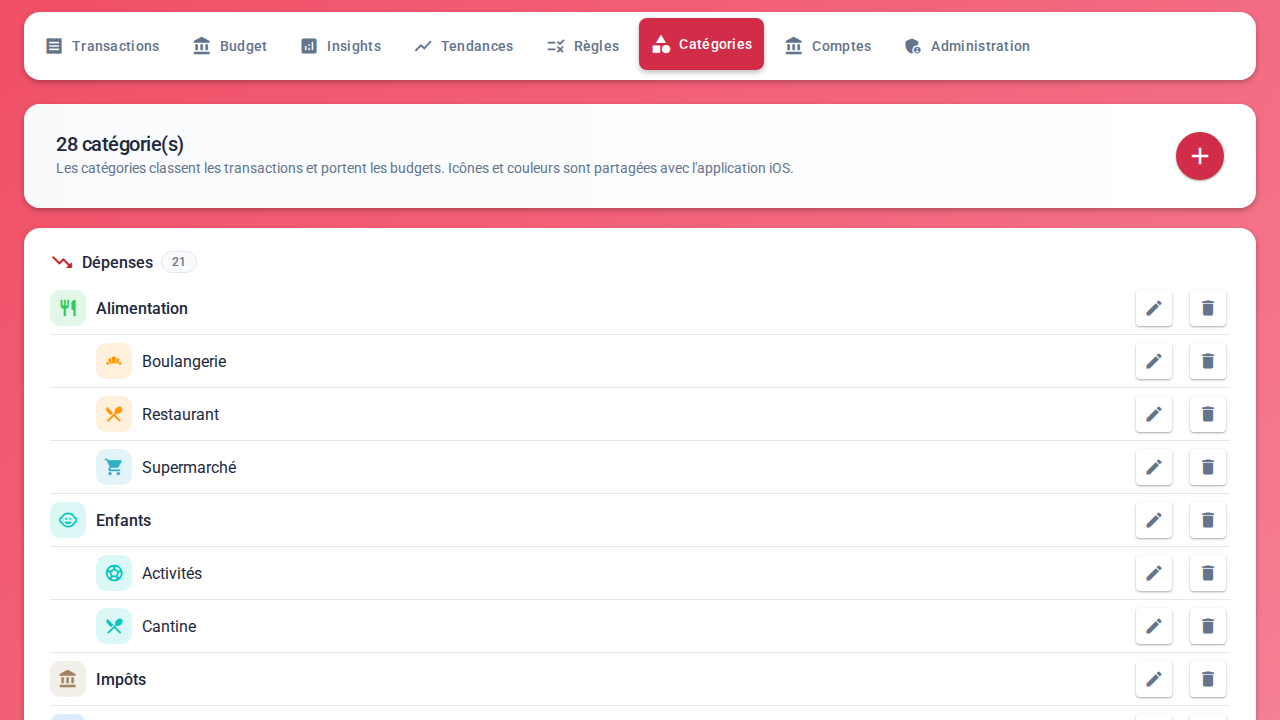
- Two levels: categories (Food) and their subcategories (Supermarket, Restaurant). The transactions of a subcategory also count for its parent.
- Three types, which drive the calculations:
| Type | Meaning | Examples |
|---|---|---|
| Expense | Money spent, tracked by budgets | Food, Housing |
| Income | Money received | Salary, Benefits |
| Off-budget | Movements that are neither expenses nor income: transfers between one's own accounts, savings | Internal transfers, Savings |
- Icon and color, chosen among those the mobile apps can display: the same category looks the same everywhere (transactions, budgets, flow, pickers).
- The "Uncategorized" category receives everything no rule recognizes; it can be neither edited nor deleted.
- Deleting a category sends its transactions back to "Uncategorized" and deletes its budgets and rules; a category that has subcategories cannot be deleted.
Categorization rules
A rule associates a keyword with a category: any transaction whose label contains this keyword receives the category ("CARREFOUR" → Supermarket).
- The keyword is stored in uppercase, like the labels; it is unique.
- When several keywords appear in the same label, the rule created first wins.
- Creating or editing a rule applies it immediately to the whole history, including transactions already categorized by hand; the rule's dialog shows how many transactions contain the keyword and how many are already in the category.
- At each synchronization, the rules classify the new transactions without a category.
- Resynchronize applies all the rules to the whole database and shows the number of recategorized transactions.
- Keep the existing categories (switch of the Rules tab, off by default): creating or editing a rule and resynchronizing only categorize the transactions without a category. Categories chosen by hand or brought by an import are never overwritten.
- Send a notification on a rule: each new matching transaction is reported to the whole household, by push or by email according to each person's preferences (see Notifications; a bell marks these rules). Useful for keeping an eye on rent, a reimbursement or a subscription.
Budgets
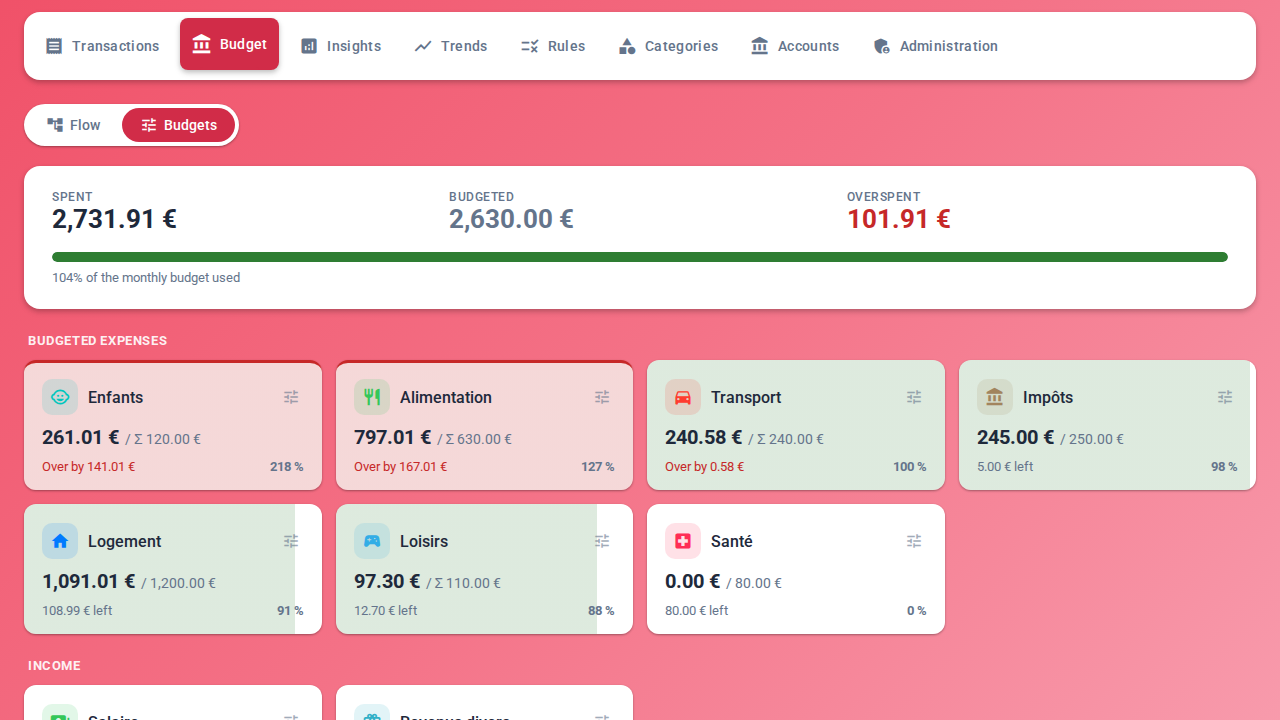
A budget is an amount per category and per month.
- Spent: the sum of the month's transactions of the category and its subcategories, in absolute value. Progress: spent ÷ budget.
- Subcategories: budget the subcategories, and the parent category equals their sum ("Σ" before the amount); or give the parent category its own amount, which replaces the sum. Setting its amount back to zero returns to the sum.
- Card colors: the background fills up as the budget is spent; it stays green up to 105% of the budget and turns red beyond that. Each card shows the amount left or the overspend.
- Month summary: total spent, total budgeted and amount left (or overspend) on budgeted expenses, with a gauge.
- Three sections: budgeted expenses; income; off-budget and the categories with neither a budget nor any expense this month.
- Explore: clicking a card shows the category's transactions for the month, and its subcategories with their own budget.
- Amounts are set month by month from the card (settings button), by all users.
- Copy from the previous month: the button above the summary copies the budgets of the previous month, either filling in only the categories without a budget or overwriting the displayed month.
Money flow of the month
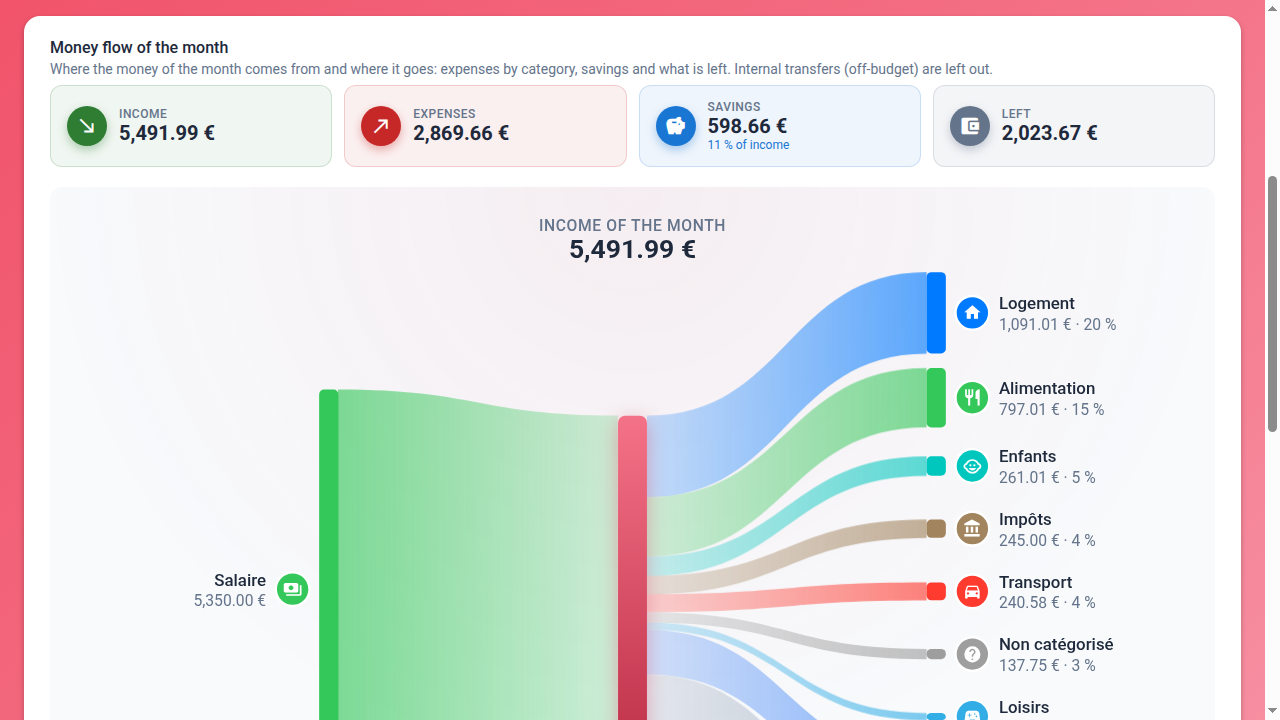
A (Sankey) diagram shows where the month's money comes from and where it goes:
- on the left, income by category;
- in the center, the month's total income;
- on the right, expenses by main category (the eight largest, the others grouped), savings and what is left (or the deficit when expenses exceed income).
Above it, four key figures: income, expenses, savings (with the share of income saved) and what is left. Each flow takes the color of its category; clicking a category (or its flow, also with the keyboard) highlights it and shows its transactions below the diagram, with their total — "Others" lists those of the grouped categories.
Internal transfers (off-budget categories) are left out, except savings; uncategorized transactions remain visible. The same flows are available as a table.
Trends
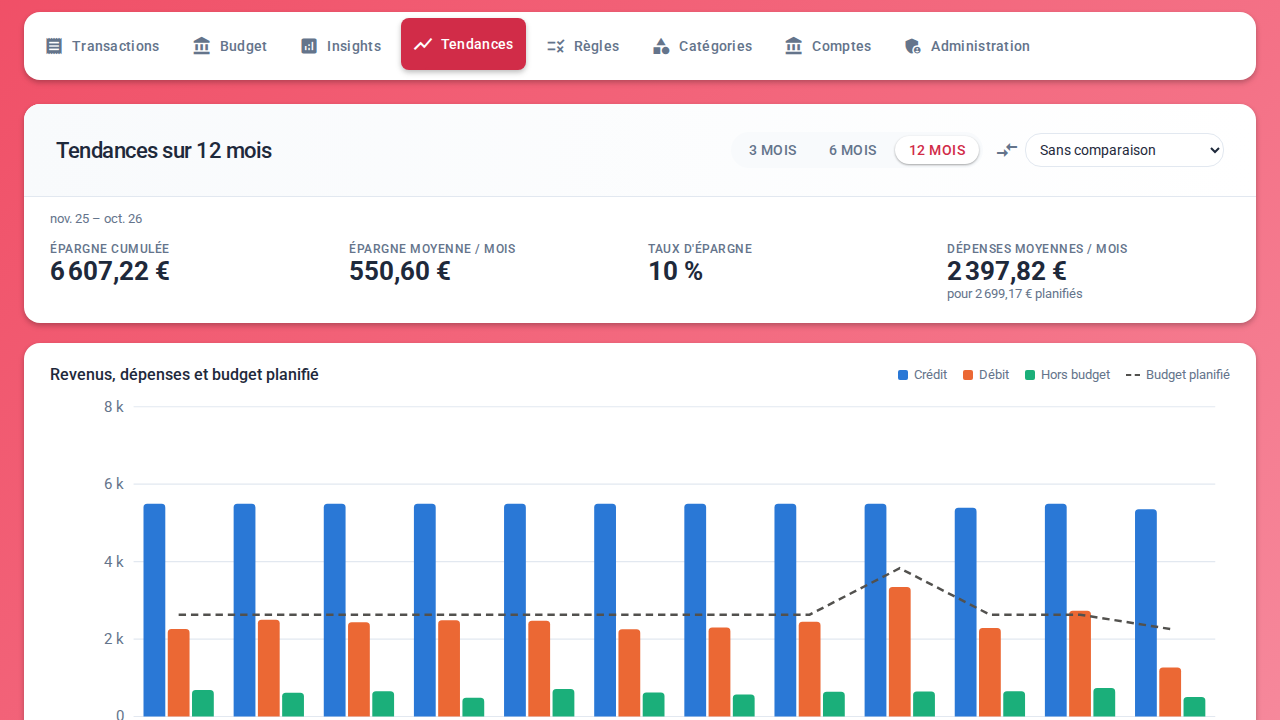
Over 3, 6 or 12 months up to the current month, optionally compared with the previous period or with the same period last year:
| Measure | Calculation |
|---|---|
| Debit | Expenses of the month, excluding off-budget categories |
| Credit | Income of the month, excluding off-budget categories |
| Off-budget | Balance of off-budget categories |
| Planned budget | Sum of the budgets of the main categories (their amount, or the sum of their subcategories) |
| Savings | Net amount paid into the savings category and its subcategories (deposits minus withdrawals) |
| Savings rate | Savings ÷ income |
The savings category is "Épargne" (case and accents ignored), or the one set in the
savings_category setting. The key figures (total and average savings, savings rate, average
spending compared with the planned budget) show the difference from the compared period. Each chart
is also available as a table.
Insights
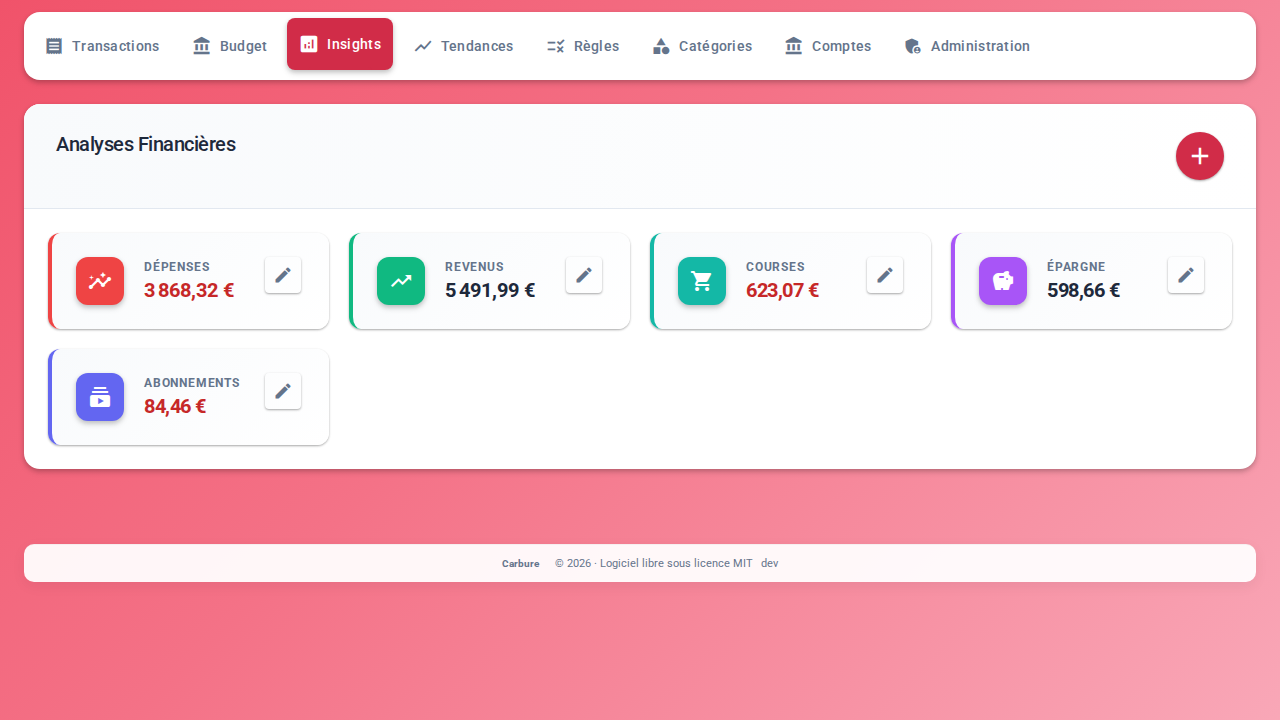
Indicators of the month that the household defines itself: groceries, fuel, subscriptions, income, savings… Each insight has a name, a color, an icon and an SQL query that returns an amount for the displayed month.
- An administrator creates them in the portal; the query is checked while typing and its result for the displayed month is shown.
- The query runs read-only: a single
SELECTstatement, with no writes, no access to user accounts or tokens (see Security). - The month-by-month history of each insight is available through the API, for the mobile apps.
Ready-to-use recipes (a category and its subcategories, subscriptions, comparison with last year, savings rate, emergency fund, remaining budget, duplicates…) are gathered in Insight recipes, with the query and how to read the result of each.
Emergency fund
The starter pack includes the Emergency fund insight: the expenses of the 6 full months preceding the displayed month (debits, excluding "off-budget" categories such as savings), as a positive amount. It is the order of magnitude of the precautionary savings to keep aside to cover 6 months of expenses; the current month is not counted, so that the value does not change during the month. On an existing instance, an administrator adds it from the Insights screen with this query:
SELECT -SUM(amount) AS amount FROM bank_transaction WHERE amount < 0 AND category NOT IN (SELECT id FROM bank_transaction_category WHERE type = 'HORS-BUDGET' AND id <> 0) AND date >= MAKEDATE({year}, 1) + INTERVAL {month} - 7 MONTH AND date < MAKEDATE({year}, 1) + INTERVAL {month} - 1 MONTH
Notifications
Notifications are sent by push to the iPhone and Android apps (Apple Push Notification service, Firebase Cloud Messaging) and, if an administrator has configured an SMTP server, by email to the profile's address. Push notifications go through the Carbure Push relay, with which an administrator registers the instance after accepting its consent terms (see Configuration):
Mobile apps
The Carbure apps are available on the App Store (iPhone) and on Google Play (Android).
| When | Who receives it | Content |
|---|---|---|
| After each account is synchronized | The whole household | Success or failure, and number of transactions to review |
| A new expense exceeds the alert threshold | Each user whose threshold is exceeded | "Large expense to check", label and amount |
| A new transaction matches a "Send a notification" rule | The whole household | The keyword, the label and the amount (only one notification per transaction) |
| The month's expenses of a budgeted category reach the budget threshold | Each user who has enabled these alerts | "Budget exceeded: Groceries", "312,40 € of 300,00 € (104%)" |
The app badge shows the number of transactions to review. The alert threshold is set in My profile → Notifications, under "Large expense" (empty = no alert).
Each notification is written in the profile language of its recipient (French,
English, Spanish, Italian, German or Portuguese; any other value gives French),
by push as well as by email: title, text, subject and signature of the email. Amounts and
dates follow this language (-1 234,56 € and 15/10/2026 in French and Portuguese,
-1,234.56 € and Oct 15, 2026 in English, -1.234,56 € and 15/10/2026 in Spanish and
Italian, -1.234,56 € and 15.10.2026 in German);
the error of a failed synchronization is shown as the bank (woob) returns it.
The server's texts are gathered in src/lib/Messages.php.
Each user chooses, in My profile → Notifications, the channels for each type
of notification (result of a synchronization, "Notify" rule, large expense,
budget exceeded): push, email, both or none. By default, everything is sent by push and
nothing by email, except budget alerts, which are disabled until the user
enables them.
Email is offered only if an SMTP server is configured (Administration →
Settings, [smtp] section) and the profile has an email address; the failure of one channel
prevents neither the other nor the synchronization.
Budget alerts
- When: after each synchronization and each statement import, for the current month only (importing a statement of past months does not alert on old budgets).
- What: the month's expenses of each expense category that has a budget, subcategories included, calculated like the Budgets screen; a subcategory that has its own budget is checked too.
- Thresholds, chosen by each person in My profile → Notifications, as a percentage
of the budget, from 50 to 200% (80% to be warned ahead of time). Below 100%, the title
becomes "Budget almost reached".
- All the budgets: a global threshold (100% by default), which can be turned off;
- Thresholds per category: a category with a budget gets its own threshold, which replaces the global one for it. For instance 100% everywhere and 80% on groceries and leisure; or, with the global threshold off, only groceries at 80% and housing at 100%. Deleting the category deletes its threshold.
- Once per category, month and user, not at every synchronization. If the budget is then raised and reached again, the alert fires again for the new amount.
AI agents
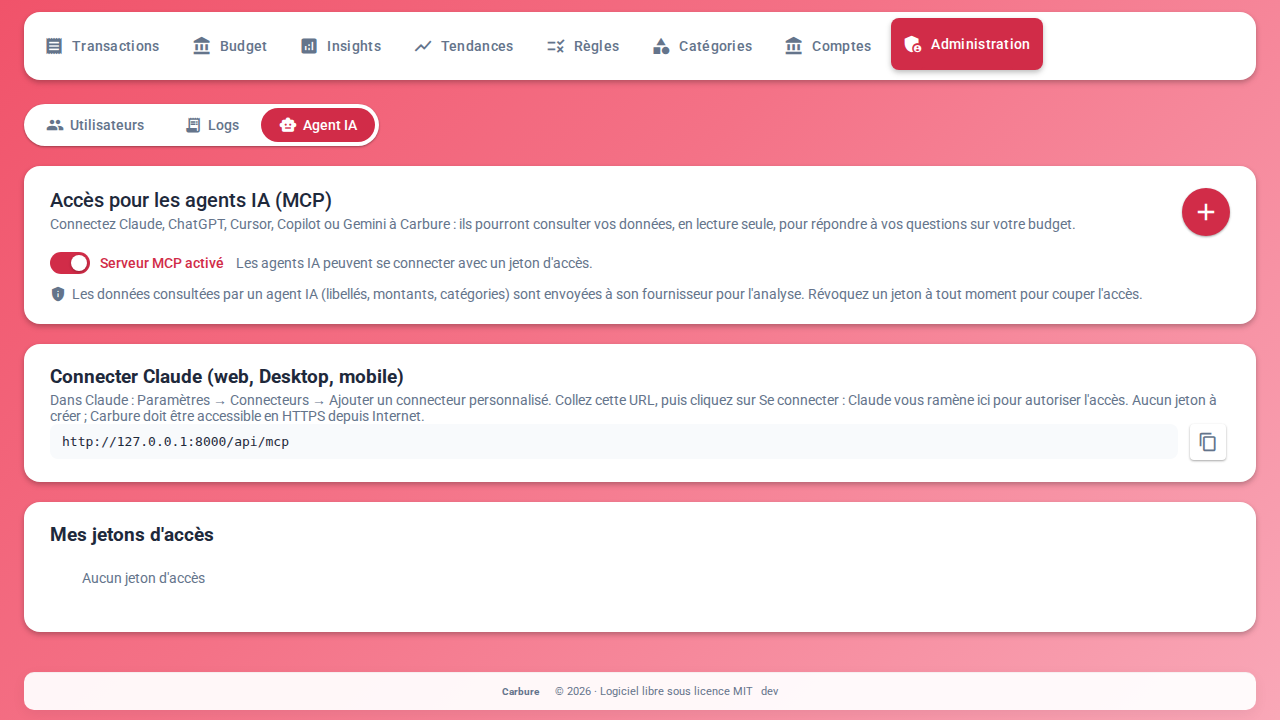
A built-in MCP server lets an AI agent answer questions about the household's budget: "How much did we spend on restaurants this year?", "Which categories are over budget this month?", "How are our savings evolving?".
- Read-only: the agent can list categories, the transactions of a month, search transactions, total expenses by category over a period, read the budget of a month, the trends and the rules; it cannot change anything.
- Disabled by default: an administrator enables it.
- Claude (web, Desktop, mobile) connects with just the server URL: Claude opens the portal, you sign in and authorize access (OAuth).
- Claude Code, ChatGPT, Cursor, Copilot, Gemini connect with an access token created in the AI agent tab (30 days, 90 days, one year or no expiration), with the ready-to-copy configuration for each agent.
- Each access appears in My access tokens (creation, last use, expiration) and can be revoked in one click.
Privacy
The data an agent looks at (labels, amounts, categories) is sent to its provider to be analyzed. Details: AI agents (MCP).
Profile and account security
- My profile, in four sub-tabs: Profile (email, first name, last name, password, language applied at each sign-in on every browser, theme), Two-factor authentication (authenticator app, backup codes), Notifications (push channels of the mobile app and email, alert threshold, watched budget and its threshold) and My devices (iOS and Android mobile apps, which can be removed; web browsers of the portal logins, the current one marked, which can be removed; trusted web browsers, which can be revoked).
- Passwords hashed (bcrypt); session valid for 30 days.
- Lockout: after 5 failed sign-in attempts in a row, the account is locked for 24 hours; an administrator can unlock it.
- Two-factor authentication: the administrator can require at sign-in the code from an authenticator app (Google Authenticator…), set up with a QR code at the first sign-in or from the profile, with 10 backup codes. The code is not asked for from an already registered mobile device (iOS, Android), nor in a browser that the user has trusted for 6 months. An administrator resets it for a user who has lost their phone (see Security).
Display and accessibility
- Light or dark theme: by default, the system's; the icon in the header switches in one click to the other theme, and the choice is saved in the profile (applied on another browser too).
- System preferences respected: increased contrast (macOS, iOS) and forced colors (Windows high contrast), reduced motion.
- Accessibility at WCAG level AA, verified by automated tests on each screen, in light theme and in dark theme.
- Installed app: the portal can be installed as an app (Chrome, Edge, Safari, Android), over HTTPS, without offline mode.
Details: Web portal.
Administration
The Rules and Accounts tabs, and the Administration menu (Users, Categories, Logs, Settings, Sync, Mobile push, AI agent, Backup, API) are reserved for administrators; other users open AI agent from their menu.
- Users: creation, editing (including the profile), deletion, last sign-in, unlocking a locked account. A user who owns transactions cannot be deleted.
- Logs: the server logs, filtered by level or by text; clicking a request's identifier shows all its lines. Secrets (passwords, tokens) are masked there.
- Settings: the server configuration file, section by section, with secrets masked. Safe settings (log level, savings category, public address, woob options, mobile push notifications, SMTP server for emails, with a test email) can be changed in the portal, each value being validated; the database, the secrets, the woob command and label cleaning remain read-only.
- Sync: the
curlcommand (for all accounts or a single one) and the crontab line that start the synchronization, with the token masked until "Show"; the tab creates or renews this token. - Backup: export of the chosen data (categories, rules, budgets, insights, transactions, deleted transactions) into a ZIP, one JSON file per type; import of a ZIP (choosing its files) or of a single file, which deletes and replaces the data of each imported type, after confirmation, all or nothing. No users, no passwords, no tokens and no bank connections in a backup.
- API: the API documentation (Swagger UI) in the portal; "Try it out" calls the API with the administrator's session.
- Database update: when a new version changes the database, a banner reports it and applies it in one click (automatic with Docker).
- New release: a banner reports that a new release of Carbure is published, with a
link to its notes (checked once a day by the server,
update_checksetting). - Session key: a banner reports a key that is too weak and renews it in one click (everyone signs in again).
Installation and updates
- Setup wizard in the browser: database connection, creation of the tables (or update of an existing database), administrator account, language. On a new database, it offers a starter pack: about thirty categories, about a hundred rules (retailers, energy suppliers, telecom operators…) and insights (expenses, income, what is left this month, savings, emergency fund, budget overspend, bank fees…). When exposed to the Internet, it also asks for a setup code.
- All-in-one Docker image (nginx, PHP, woob), with MariaDB: see Installation and the Synology tutorial.
- Updates: each new version brings its database migrations, applied at container start or from the portal banner.
Known limitations
- One currency per instance (
currencysetting, euro by default), only displayed: no conversion, no multiple currencies; the mobile apps always show euros. - The banks covered are those of woob, mostly French.
- Recurring transactions are detected, not scheduled: no bill schedule and no balance forecast.
- No savings goals.
- The iPhone and Android apps are for day-to-day tracking; administration and statement import are done in the web portal, which is used in the browser or can be installed as an app (over HTTPS). Neither the apps nor the portal have an offline mode.
See also the comparison with Firefly III, Actual Budget, Kresus, Sure and ezBookkeeping.