Mobile apps
Carbure is available as a native app for iPhone (SwiftUI) and for Android (Jetpack Compose). Both offer the same screens and connect to your Carbure server, through the same API as the web portal: no data goes through a third-party service, except push notifications (see below).

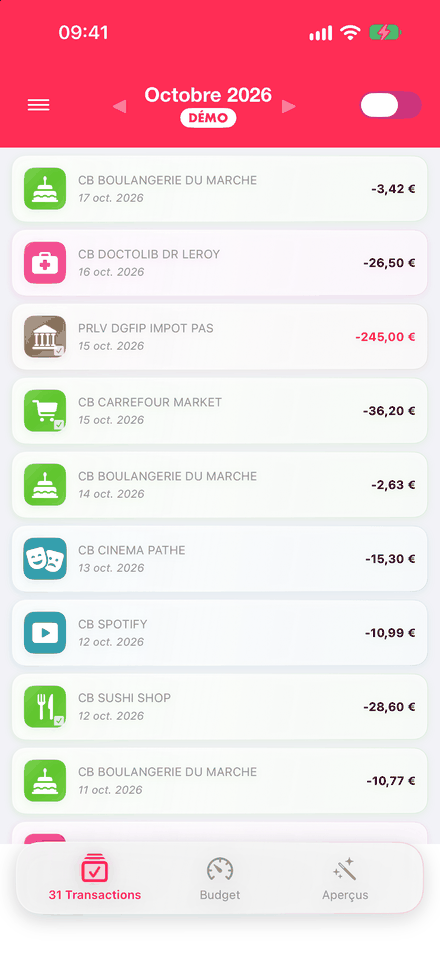
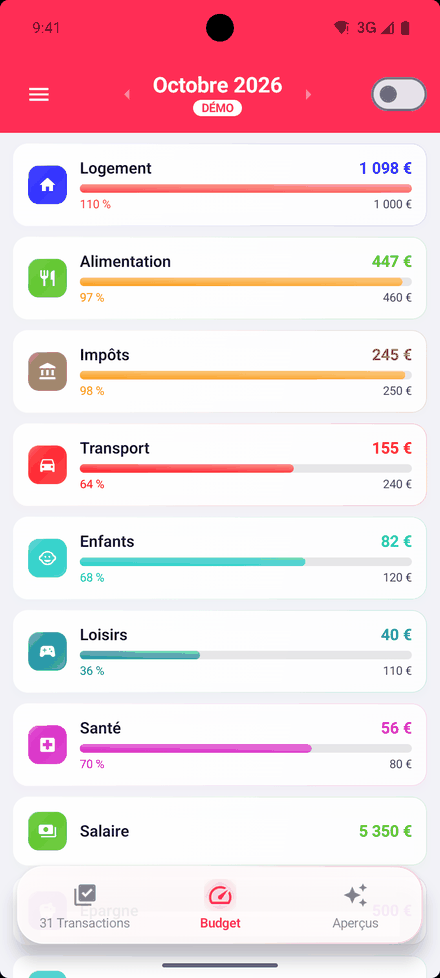
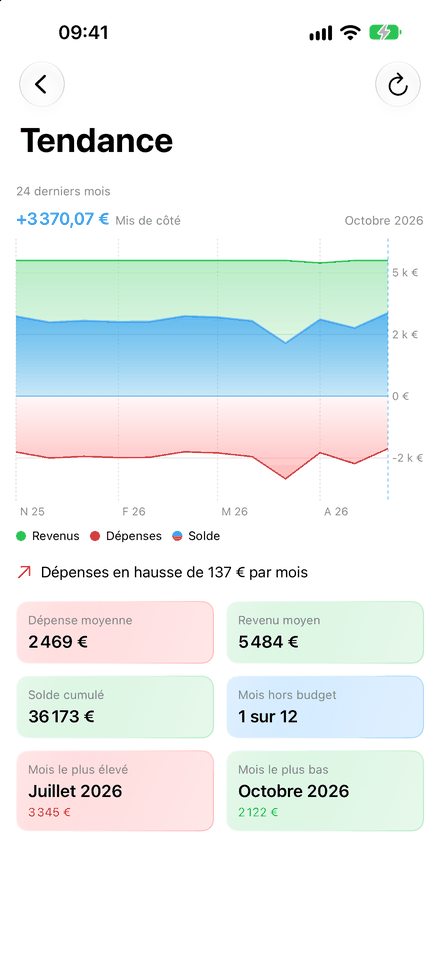
The apps are made for day-to-day tracking: viewing, checking, categorizing, adjusting a budget, starting a sync. Administration (bank accounts, rules, categories, insights, users, settings) and statement import remain in the web portal.
| iPhone | Android | |
|---|---|---|
| Minimum system | iOS 26 | Android 8.0 |
| Languages | French, English (the phone's language) | French, English (the phone's language) |
| Passwordless login | Face ID / Touch ID | fingerprint or face (strong biometrics) |
| Push notifications | Apple (APNs) | Google (Firebase Cloud Messaging) |
| Theme | system, light or dark | system, light or dark |
Download
App Store (iPhone) Google Play (Android)
- Free, no ads nor subscription; no data collected (see Privacy).
- Available in France for now.
- Requirement: a Carbure server installed and reachable from the phone, or the online demo to try it.
- The web portal can also be installed as an app on your phone.
A rating or a review on the stores helps the project a lot. For help, join the Discord; for a bug, open an issue on GitHub.
Login
The login screen asks for the username and password of the Carbure account.
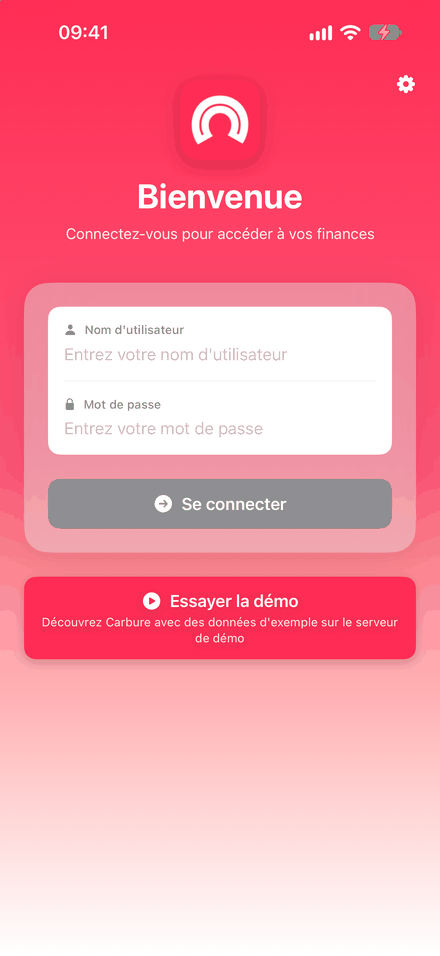
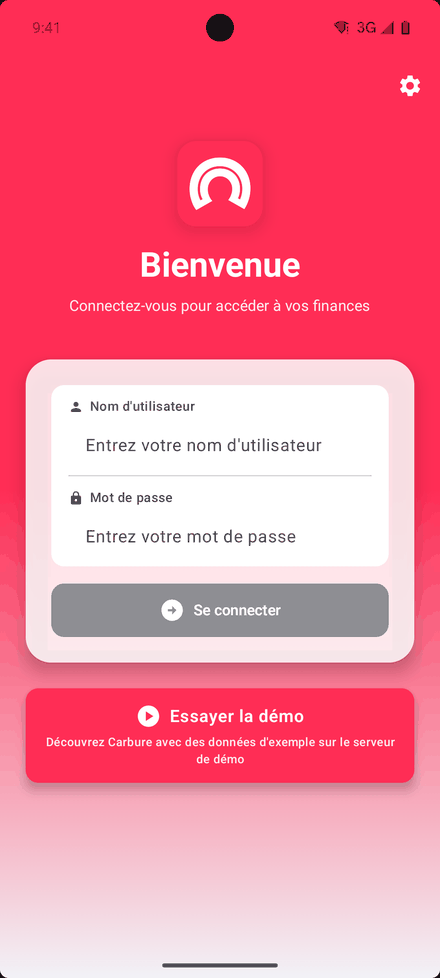
- Server address: the ⚙ button at the top right shows the API address field
(
https://<server>/api/); it must usehttporhttps, with no username or password in the URL. It is saved at login, along with the last username entered. - Try the demo: logs in to the demo server with a shared account, without touching the saved server or password. A DEMO badge appears under the month.
- Server version: before each login, the app reads
GET /health; if the server requires a more recent version of the app (min_mobile_version), login is refused with a message asking you to update the app. - Error messages: wrong credentials, locked account (after 5 failures, see Security), server not found or unreachable.
- Registered device: at login, the app sends the phone's name and platform and its notification token; the device appears in My profile → My devices in the portal, where it can be deleted.
- Session: the session token stays in memory; you have to log in again (with your password or biometrics) each time the app is launched.
Two-factor authentication
When two-factor authentication is required, a
second screen asks for the 6-digit code from the authenticator app, or a recovery
code (xxxxx-xxxxx). If the user does not have an authenticator app yet, the app shows
the key to add, with the Add to an authenticator app (otpauth:// link) and Copy
the key buttons, then, once the first code is accepted, the 10 recovery codes to
copy and keep before opening the session. The code is no longer requested afterwards from
that phone.
Face ID and fingerprint
In Settings → Security, biometric login (Face ID or Touch ID on iPhone, fingerprint or face on Android) saves the username and password at the next login:
- on iPhone, in the Keychain, limited to this device;
- on Android, encrypted with a Keystore key that requires biometrics on every use; a new face or fingerprint enrolled on the phone erases them.
The login screen then offers biometrics automatically. The password is only sent to the server for which it was entered; disabling the option, changing server or a rejected password erases it. Logging out keeps it.
Login link
A https://carbure.org/app/?server=<API URL>&user=<username> link, opened on
the phone (or scanned as a QR code with the camera), opens the app and pre-fills the
server and the username, after confirmation: the app warns that the password will be sent
to this server and that the current session will be closed.
The portal shows this QR code in My profile → My devices (Connect the mobile
app): it holds the address of the API, the one of the public_url setting when it is
set (otherwise the address the portal is opened with), with no username nor password. A
localhost or 127.0.0.1 address, which a phone cannot reach, is flagged.
Loading
After login, the app loads the current month (categories, budgets, transactions, insights), showing each step; if it fails, Retry restarts the loading.
Main screen
- Header: the menu (☰), the displayed month with its previous / next arrows, and a switch that hides checked transactions (in all lists and the counter) to keep only those to review.
- Tab bar: Transactions (with their count), Budget and Insights. Changing the month reloads all three.
Transactions
The list of the month's transactions: category icon and color, a check mark if the transaction is checked, label, date and amount (green for a credit, red for an expense over 100 €).
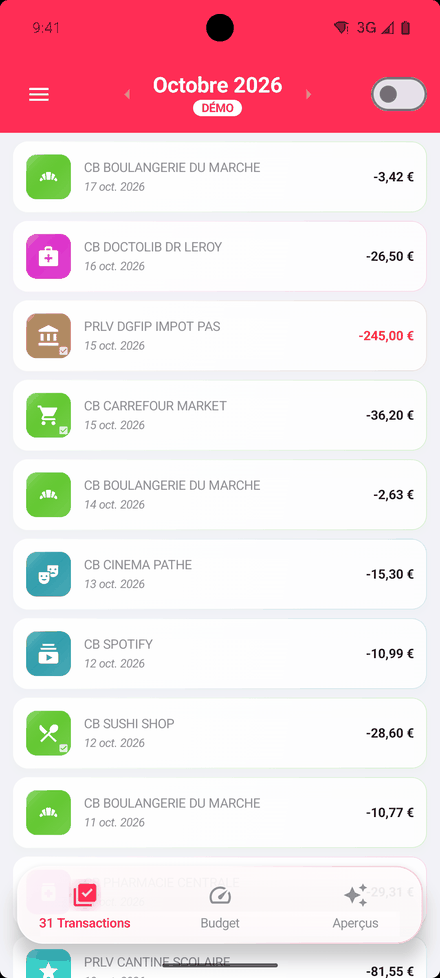
A transaction opens its details (category, amount, label, date, card) with two actions:
- Categorize: choose the category in the tree (a parent category opens its subcategories); the transaction is also checked.
- Point: marks the transaction as checked.
As in the portal, these actions are shared by the household (see Features).
Budget
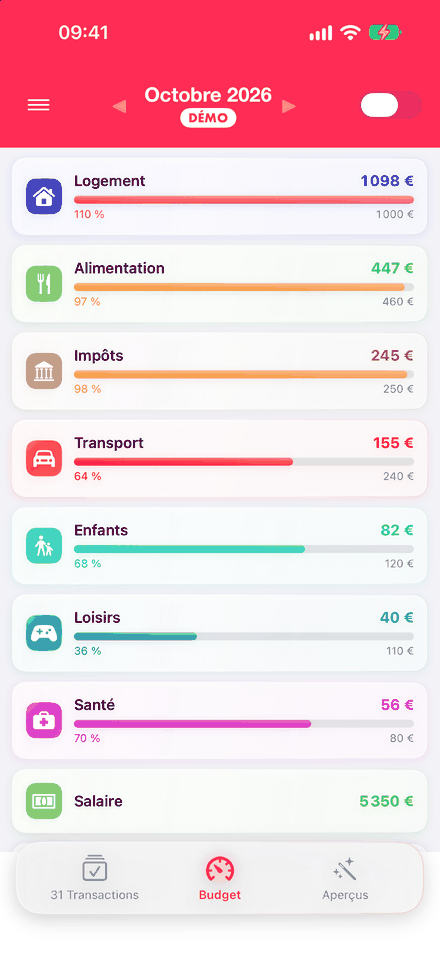
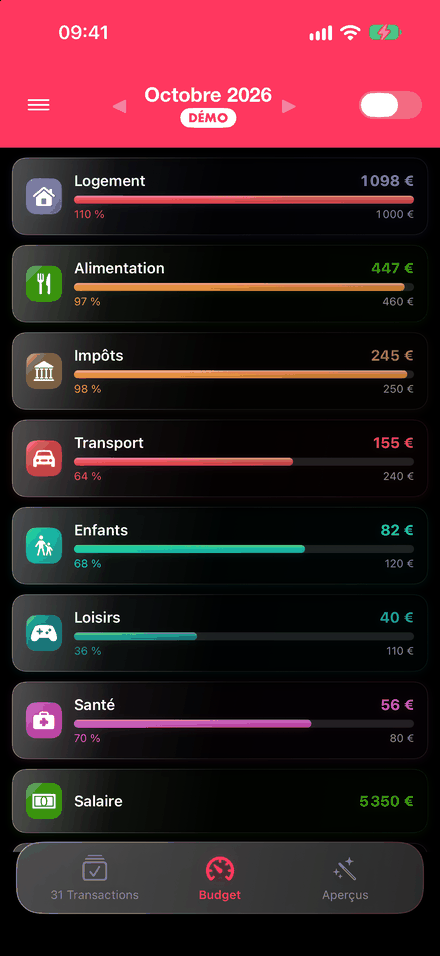
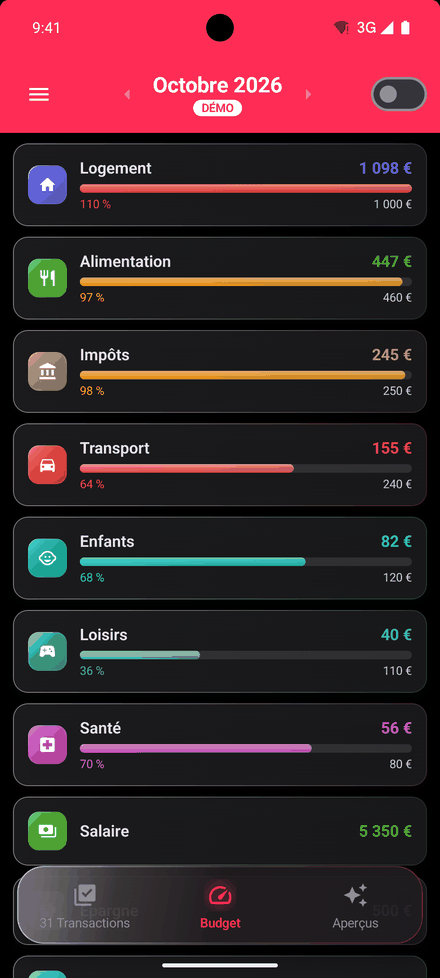
The categories of the month, those with a budget first: amount spent and, if there is a budget, a progress bar with the percentage (orange from 80 %, red above 100 %).
A category opens its details: a ring showing the budget used, then its sub-budgets (if it has subcategories) or its transactions of the month. The ⚙ button changes the budget amount for that month (whole amount in euros).
Insights
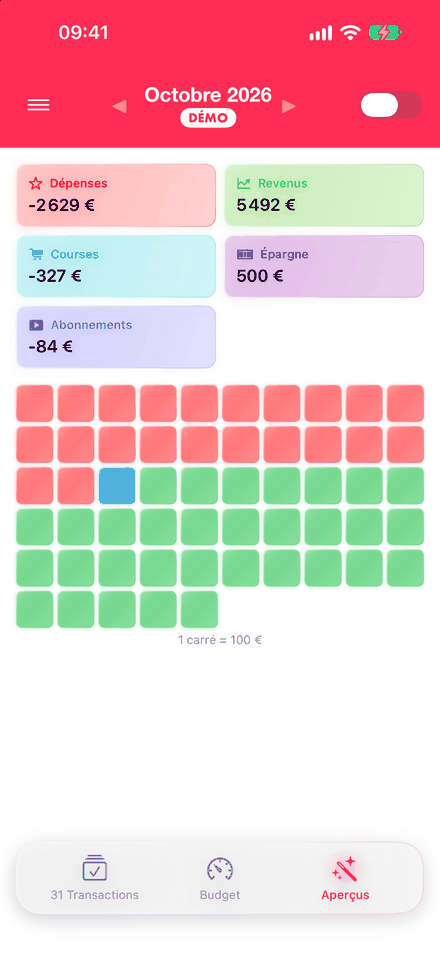
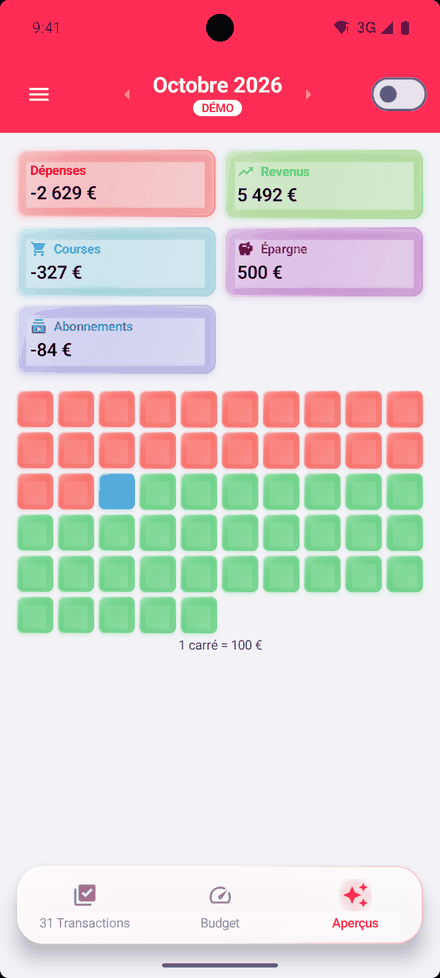
The month's insights defined on the server (expenses, income, remaining, savings…), as tiles, and a square chart of the month: each square is worth 100 € (the scale adapts), with what was spent in red, the remaining planned budget in blue and the rest of the income in green.
Menu
Trends
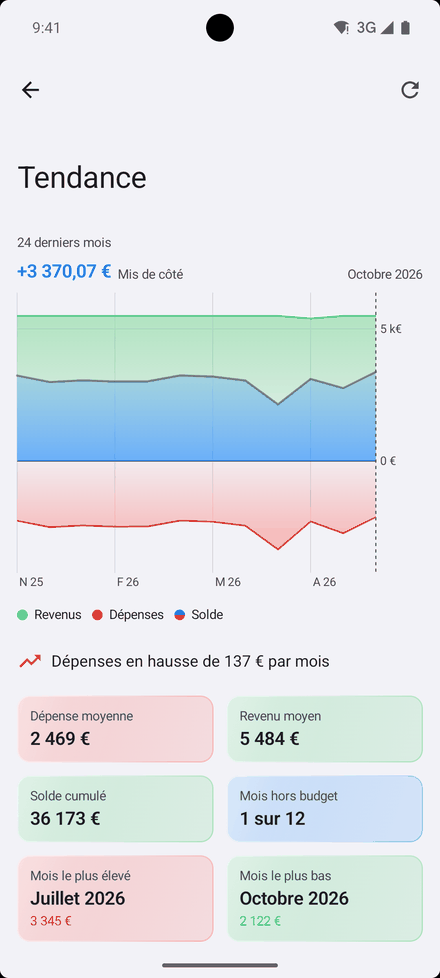
The last 24 months: income above the axis, expenses below and the balance curve (blue when the month allowed you to put money aside, orange when it went over).
- Tapping or dragging on the chart shows the balance of a month.
- The legend hides or shows each series.
- Below the chart: the change in expenses (recent half of the period compared with the older one), average expenses and income, the cumulative balance, the number of months over budget, and the months with the highest and lowest expenses.
Sync
Starts the bank sync of all accounts and shows its live log, colored by level (info, success, warning, error). Leaving the screen interrupts it.
Approval by the bank
When the bank asks for approval (code, SMS), the app shows it in the log but does not let you respond: approve it from the portal.
Settings
- Server: the server address; changing it logs you out and forgets the saved password. Reset to Default restores the default address.
- Appearance: System, Light or Dark, applied immediately and saved in the profile: the same theme is used in the portal and on the other devices.
- Security: biometric login.
- Notifications: Test Push Notification sends a test notification to each device of the account and shows the result.
About shows the app version; Logout closes the session after confirmation.
Push notifications
On first launch, the app asks for permission to show notifications (on Android from version 13). It then receives the server's notifications, including when it is open:
- sync result of each account;
- large expense, above the user's threshold;
- transaction matching a "Send a notification" rule;
- monthly budget reached.
The content, recipients, language and choice of channels (push, email) are described in Features; they are set in My profile → Notifications in the portal. On iPhone, the app badge shows the number of transactions to review.
Notifications go through the Carbure Push relay, which the administrator enables for the instance (see Configuration), then through Apple (APNs) or Google (Firebase Cloud Messaging). Without this registration, the apps work but do not receive push notifications.
Privacy
The apps only connect to the server you specify (and to the demo server if you try it), with no ads or audience measurement. Bank data stays in memory and disappears when the app is closed; only the server address, the last username, the theme and, if you enable it, the password protected by biometrics are kept on the phone. Details: Privacy policy.
Limitations
- No offline mode: the server must be reachable.
- No search or editing of transactions beyond checking and category; a checked transaction cannot be set back to "not checked".
- No deletion of budgets, and no administration (accounts, rules, categories, insights, users): these screens are in the portal.
- Amounts in euros, like the server.